

Breaking Up with Single-Factor: A Guide to connecting your BI Tools to Snowflake using RSA Key Pairs

Earlier this year, Snowflake announced plans to block single-factor authentication. Due to client feedback regarding the complexity of migrating all authentications in the original timeline, Snowflake have extended the final enforcement date to October 2026. If you are still using individual username-password authentication, this blog series is here to help you migrate in time!
What does enforcement look like? When the deadline is finally enforced, BI developers won’t be able to use their personal Snowflake login credentials when developing in BI tools, even if they have MFA enabled, finding errors like this:
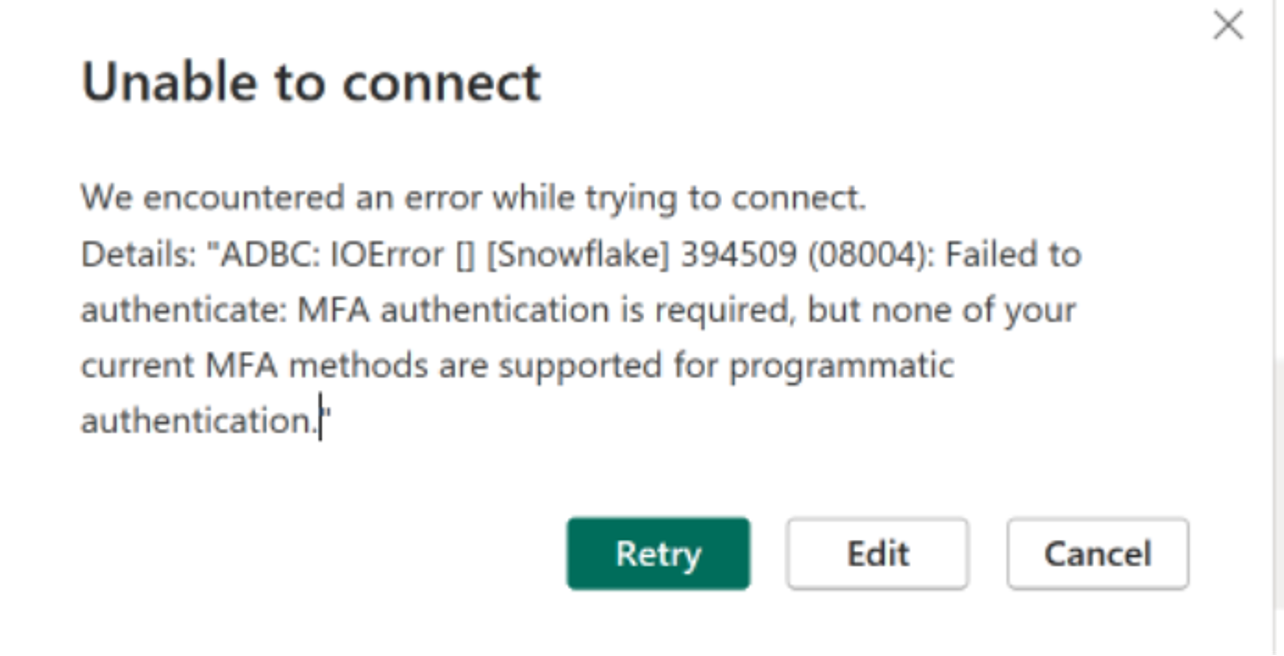
You now have three options to authenticate your BI tools (maybe fewer depending on your BI tool of choice): OAuth, RSA key pairs, or PAT tokens. In this blog series, we will explore these three connection options for some of the most popular BI tools.
Looking for alternatives like Programmatic Access Tokens (PAT) or OAuth? Check out our other blogs:
- Breaking Up with Single-Factor: A Guide to connecting your BI Tools to Snowflake using Programmatic Access Tokens
- Breaking Up with Single-Factor: A Guide to connecting your BI Tools to Snowflake using OAuth
Setting up RSA Key pairs on Snowflake
How to use an RSA Key Pair in Tableau
How to use am RSA Key Pair in PowerBI
How to use an RSA Key Pair in Sigma
How to use an RSA Key Pair in Omni
How to use an RSA Key Pair in Domo
How to use an RSA Key Pair in Looker
What are RSA Key pairs?
Key pair authentication is a method used to authenticate a user or service (like a BI tool connection) based on a pair of keys: a private key, which remains confidential, and a public key, which is shared.
In Snowflake, users or services can authenticate using RSA-2048 private keys instead of traditional passwords.
The steps are the following:
1. Generate Key Pairs:
The user or service generates a pair of keys (private and public). This is typically accomplished using OpenSSL.
2. Register the Public Key with Snowflake
3. BI tool Connection Creation and Configuration: The connection in the BI tool is created using the private key from step 1. To authenticate the connection request, Snowflake issues a challenge to the BI tool. The tool then verifies its identity using its private key, without ever exposing it.
4. Key Rotation
After a predetermined period or under specific conditions, the old key pair is retired and replaced with a new one. The fresh public key is then registered with Snowflake, and the cycle repeats.
Setting up RSA Key pairs on Snowflake
Note: If you are using Omni, it can generate the key pair for you, you can skip directly to the Omni section of this blog. If you prefer to bring your own Private Key, follow Step 1 below for an unencrypted key. Omni doesn’t allow you to bring your own public key.
1. Generate the Private Key
Depending on which BI tool you will use, you have the option to generate encrypted or unencrypted private keys. Generally, it is safer to generate encrypted keys, check your BI tool below to know if encrypted keys are supported.
To generate an unencrypted version, open a terminal window and use the following command:
openssl genrsa 2048 | openssl pkcs8 -topk8 -inform PEM -out rsa_key.p8 -nocryptTo generate an encrypted version use the following command:
openssl genrsa 2048 | openssl pkcs8 -topk8 -v2 des3 -inform PEM -out rsa_key.p8When you run the command, OpenSSL will prompt you to enter and verify a password which is used as the key for this encryption.
2. Generate the Public Key
Run the following command. If you named your file something different, replace rsa_key.p8 with your file name.
openssl rsa -in rsa_key.p8 -pubout -out rsa_key.pub3. Save the two PEM files somewhere secure.
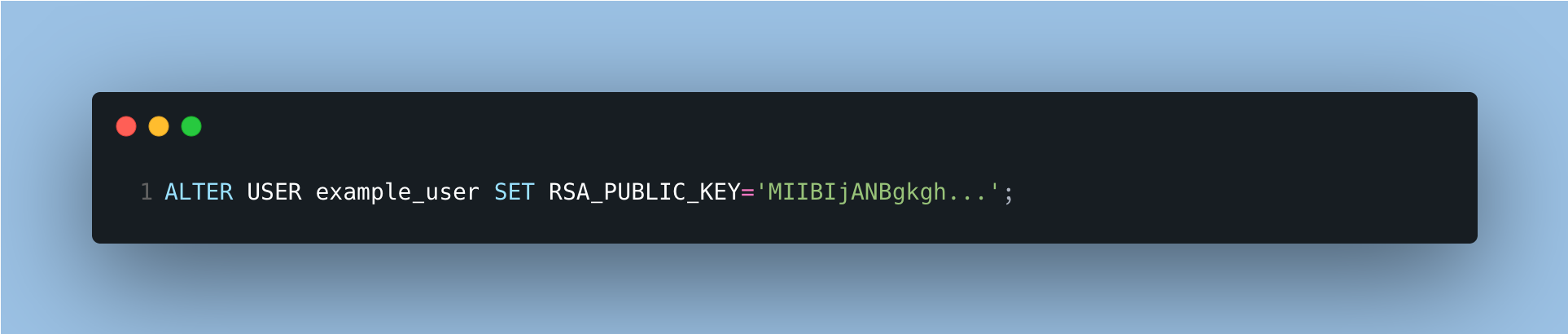
4. Assign the public key to a Snowflake user.
Run this command on snowflake, we recommend you do this for a service user that you will then use for the BI tool connection.
5. Verify the user’s public fingerprint
Run this command on snowflake:
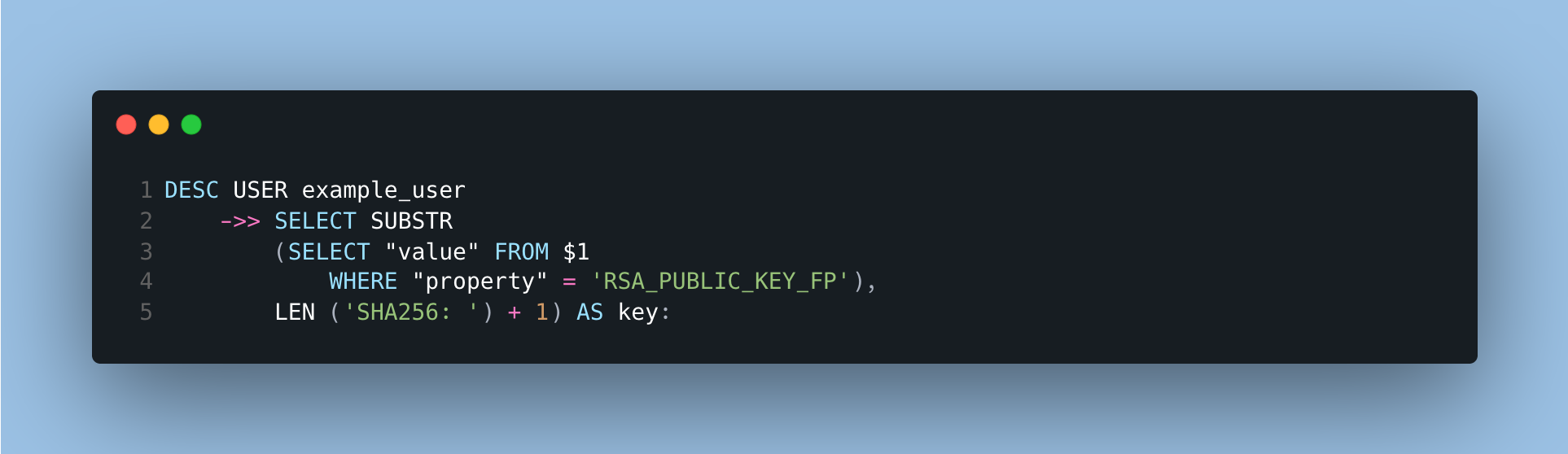
Copy the output and then run the following command on the command line:
openssl rsa -pubin -in rsa_key.pub -outform DER | openssl dgst -sha256 -binary | openssl enc -base64Both outputs should match.
Using RSA in your BI tool
Once you have both your keys generated and your Public key registered in Snowflake, the next steps will vary depending on your BI tool. Here we have detailed the steps for some of the most popular BI tools that our clients use.
How to use an RSA Key Pair in Tableau
- Sign in to Tableau Cloud or Server and navigate to your My Account Settings page.
- In the Security Section find Saved Credentials for Data Sources
- Next to Snowflake, click Add.
- In the Add a New Saved Credential window, select Key-pair Authentication, and then click Add.
- Enter your Snowflake server, Role (optional), and the service user name associated with these credentials.
- For Private Key File, click Choose a file and select the file that contains your private key. If encrypted, enter the passphrase in the Password field, and then click Add.
How to use am RSA Key Pair in PowerBI
PowerBI doesn’t support RSA Key Pair authentication for Snowflake. Please see our blogs on OAuth and PAT for alternative authentication options
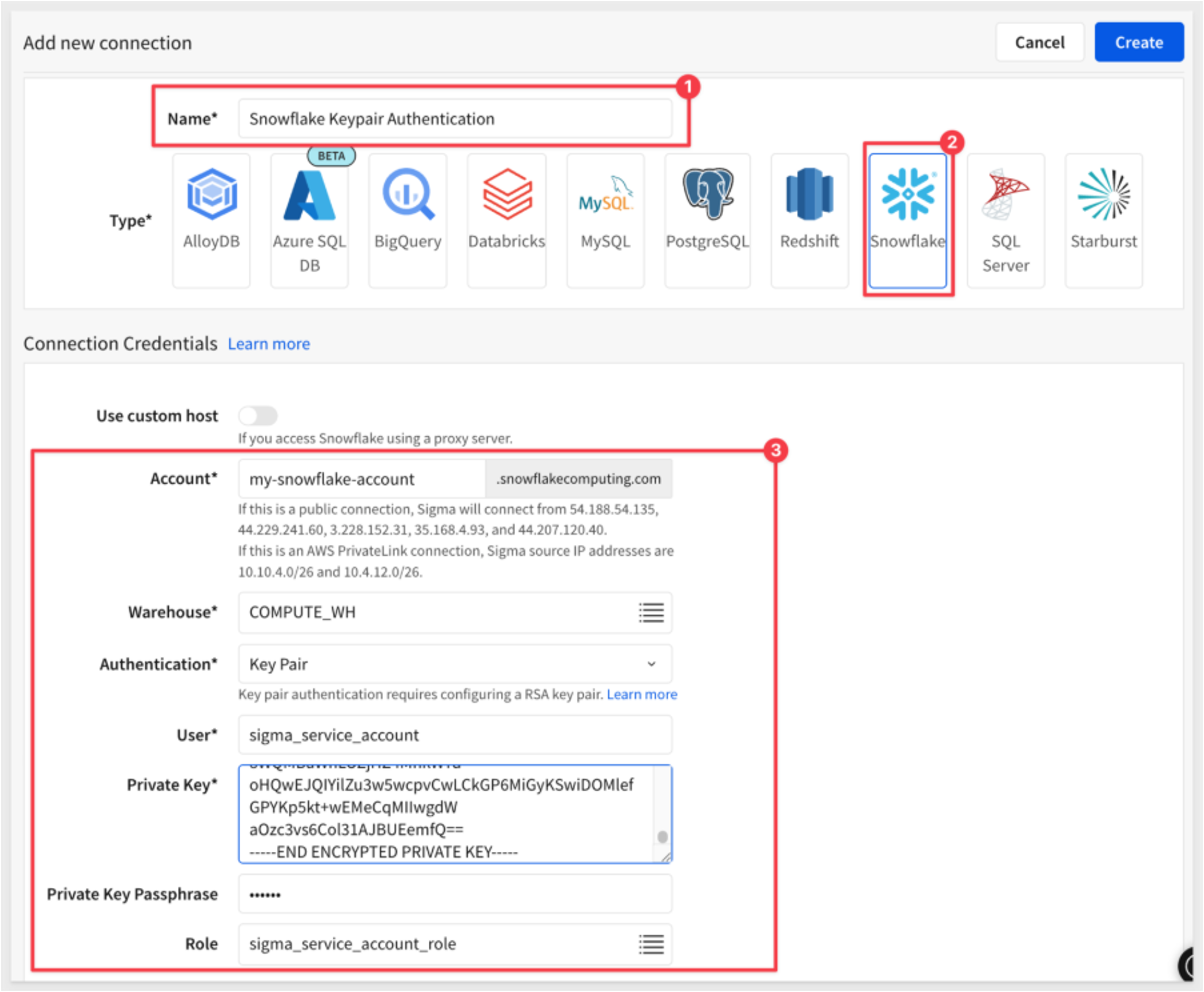
How to use an RSA Key Pair in Sigma
Sigma supports both encrypted and unencrypted key pairs. We recommend using encryption.
- Log into Sigma as Administrator and navigate to Administration > Connections. Click Create Connection and give it a name.
- Select Snowflake as the type
- Enter your snowflake details:
- Snowflake account and warehouse.
- Select Key Pair authentication.
- Enter the service user name.
- Paste the private key (copy it from the file) and the passphrase if encrypted (optional).
- Enter the service user role.
How to use an RSA Key Pair in Omni
https://docs.omni.co/docs/connections/database/snowflake
Encrypted key files are not supported by Omni
- In Omni, click Settings > Connections.
- Click Add connection and select Snowflake.
- Enter your Snowflake details like account, warehouse, database and other required fields.
- Under username, enter the service user name.
- Use the Authentication Type dropdown to select Key Pair
- If you are generating your Key Pair in Omni:
- In the Keypairs tab, click Generate key-pair.
- Click Copy next to the public key.
- Navigate back to your Snowflake account and run the following:
alter user omni_user set RSA_PUBLIC_KEY='COPIED_PUBLIC_KEY'; - In the Keypair tab in Omni, click the toggle in the Active column to enable the keypair.
- If you are bringing your own Key Pair:
- In the Keypairs tab, click Add existing key.
- Paste the private key into the dialog (Omni will automatically add -----BEGIN PRIVATE KEY----- and -----END PRIVATE KEY----- if the key doesn't have them.)
- Click Add keypair. Omni will automatically generate the public key and redirect you back to the Keypairs tab.
- Click Copy next to the newly-generated public key.
- Navigate back to your Snowflake and run the following:
alter user omni_user set RSA_PUBLIC_KEY='COPIED_PUBLIC_KEY'; - In the Keypair tab in Omni, click the toggle in the Active column to enable the keypair.
How to use an RSA Key Pair in Domo
Domo supports both encrypted and unencrypted key pairs. We recommend using encryption.
- Navigate to the Data Warehouse.
- In the left panel, select Manage Cloud Connections.
- In the modal, select Snowflake.
- Hover over an existing integration and select Options > Edit account or create a new integration.
- In the integration modal under Connect with select Key pair. The modal offers the option to review the Snowflake documentation on key-pair authentication.
- Enter your snowflake hostname:
<account_name>.snowflakecomputing.com. - Enter your service user name.
- Select Choose a File and upload your encrypted private key file.
- Enter your private key passphrase for the encrypted file.
How to use an RSA Key Pair in Looker
RSA is Looker’s recommended authentication method, as it allows using PDTs, whereas OAuth does not. Encrypted key files are not supported by Looker.
- In the Admin section of Looker, select Connections, and then click Add Connection.
- In Database Settings - Host: Enter the Snowflake hostname. It will be: <account_name>
.snowflakecomputing.com. - In Database Settings - Authentication Method: Select Key Pair
- In the username field enter the service user name that will be used to connect to Snowflake.
- In the Key Pair File field upload your unencrypted key file.
RSA Key Pairs is just one of the options you have to authenticate your BI tool connection to Snowflake. Please check out our other blogs on PAT and OAuth to see other secure alternatives.
Need help setting up your snowflake to BI connection fast before the deprecation deadline? Contact us, we are already helping our clients switch their connections.