

Breaking Up with Single-Factor: A Guide to connecting your BI Tools to Snowflake using Programmatic Access Tokens

Earlier this year, Snowflake announced plans to block single-factor authentication. Due to client feedback regarding the complexity of migrating all authentications in the original timeline, Snowflake have extended the final enforcement date to October 2026. If you are still using individual username-password authentication, this blog series is here to help you migrate in time!
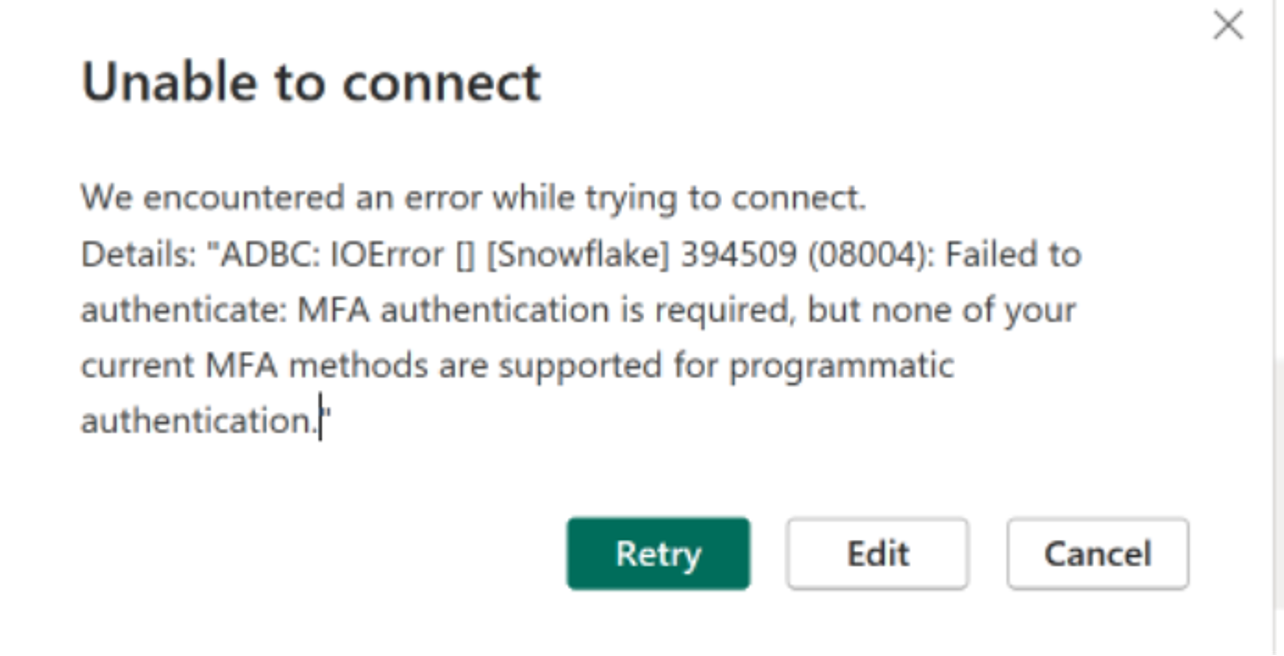
What does enforcement look like? When the deadline is finally enforced, BI developers won’t be able to use their personal Snowflake login credentials when developing in BI tools, even if they have MFA enabled, finding errors like this:
You now have three options to authenticate your BI tools (maybe fewer depending on your BI tool of choice): OAuth, RSA key pairs, or PAT tokens. In this blog series, we will explore these three connection options for some of the most popular BI tools.
Looking for OAuth or RSA? Check out our other blogs:
- Breaking Up with Single-Factor: A Guide to connecting your BI Tools to Snowflake using OAuth
- Breaking Up with Single-Factor: A Guide to connecting your BI Tools to Snowflake using RSA Key-Pairs
What are Programmatic Access Tokens?
What are Programmatic Access Tokens?
Programmatic access tokens (PATs) (sometimes called personal access tokens) are token-based authentication credentials that allow applications, scripts, and services to authenticate to systems like Snowflake instead of using traditional passwords. PATs are not just more complex; they are designed to provide additional security based on what kind of user is being used — human and service. They have extra security features like: enforced token expiration, enforced network restrictions, and role-based access control.
Setting up a PAT in Snowflake
Programmatic access tokens can be created for Human users (TYPE=PERSON) or Service users (TYPE=SERVICE), but to follow best practices you should always use service users when connecting your BI tool to snowflake.
Pre requisites:
- Create a service user (TYPE=SERVICE)
- Activate a network policy with one or more network rules.
- Authentication Policy: Add 'PROGRAMMATIC_ACCESS_TOKEN' to the AUTHENTICATION_METHODS list. You can use the ALTER AUTHENTICATION POLICY command to update this list.
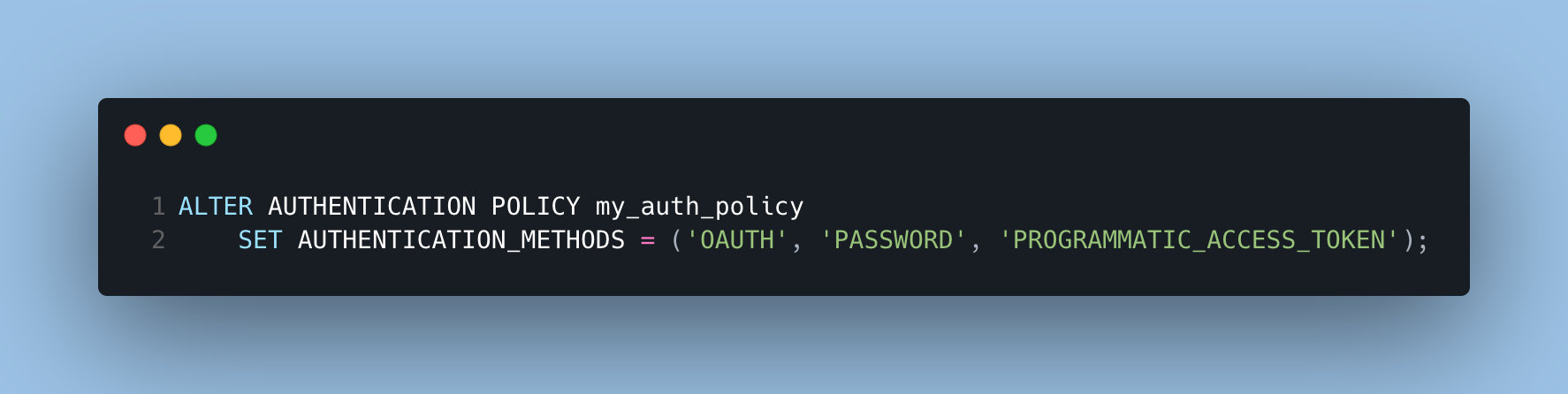
You can generate a programmatic access token in Snowsight or by executing SQL commands. Here we will cover how to generate PATs in Snowsight. For SQL commands please check Snowflake’s PAT User Guide.
- Select Admin » Users & Roles.
- Select the service user that you want to generate the programmatic access token for.
- Under Programmatic access tokens, select Generate new token.
- In the Name field, enter a name for the token.
- In the Comment field, enter a descriptive comment about the token.
- From Expires in, choose the number of days after which the token should expire (By default, a programmatic access token expires after 15 days).
- Since we are generating the token for a service user we will select
One specific role (recommended) and select the role that should be used for privilege evaluation and object creation. - Select Generate.
- Copy or download the generated PAT Now and store it somewhere secure (After you close this message box, you will not be able to copy or download it).
For more details, please read Snowflake’s PAT User Guide.
Using a PAT in your BI tool
Once you have your PAT configured in Snowflake, the next steps will vary depending on your BI tool. Here we have detailed the steps for some of the most popular BI tools that our clients use.
How to use a PAT in Tableau
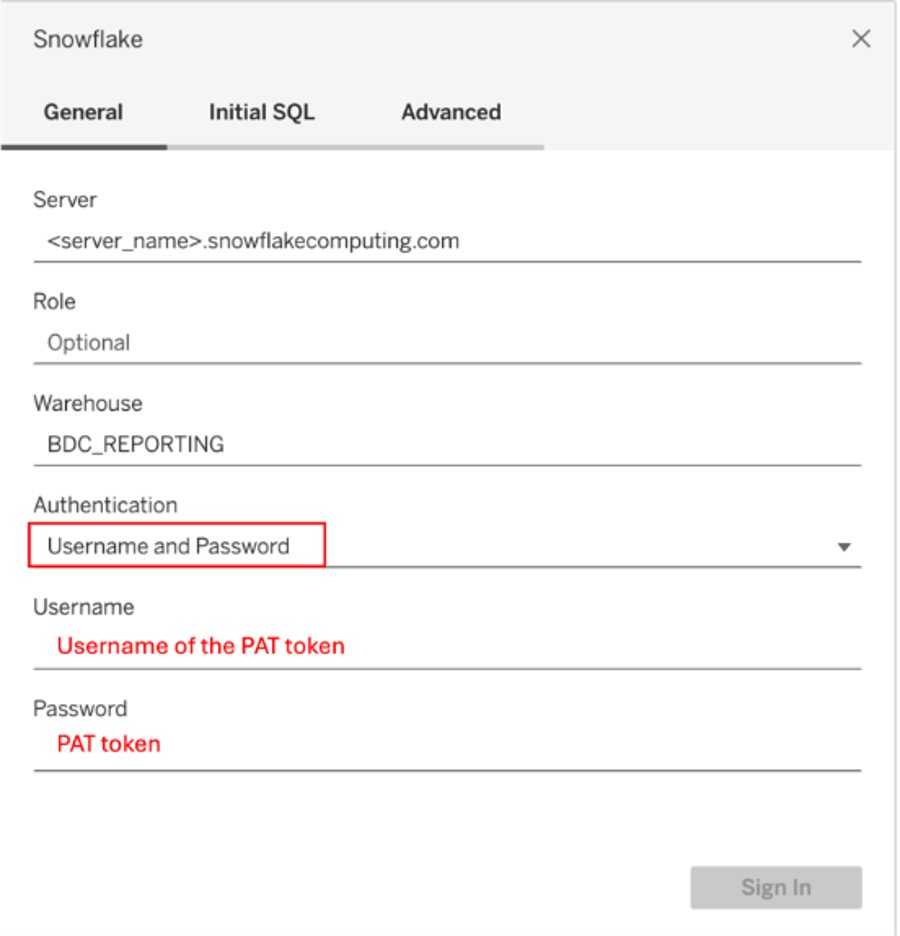
- On the Connect screen, under To a Server, select More, and then select Snowflake.
- On the General tab, enter the name of the server that you want to connect to.
- (Optional) Enter the Role and Warehouse.
- Select Username and Password.
- In the username field, enter the username associated with the token.
- In the password field enter the PAT token.
- Click Sign In.
How to use a PAT in Power BI
The steps will be slightly different depending on if you are setting up a new connection, or if you need to update the credentials of an existing connection.
If you are connecting to the server for the first time:
- Select Get Data and then go to “more” and select “Snowflake”.
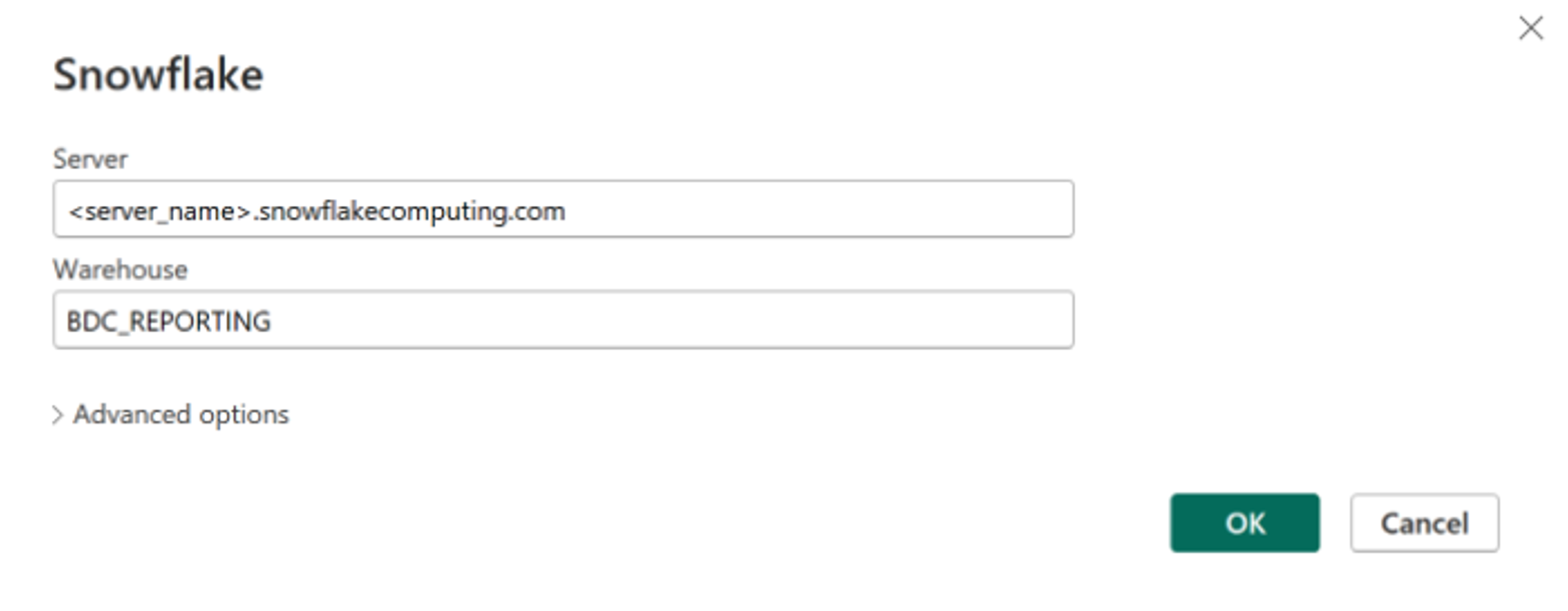
- Enter the name of the server that you want to connect to and the Warehouse. Then click OK.
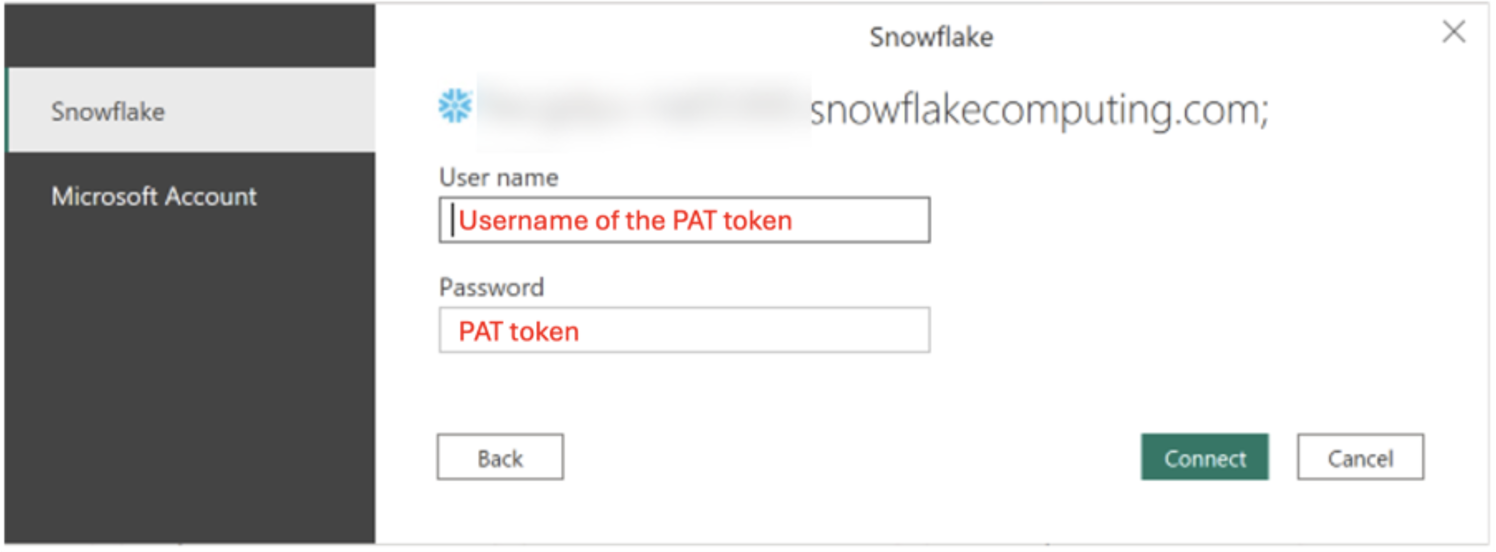
- You will be prompted to enter Username and Password. If you are not prompted, it probably means you have connected to this server before, please look at the next section.
- In the username field, enter the username associated with the token.
- In the password field enter the PAT token.
- Click Connect.
If you have already connected to the server and need to update your authentication from Password to PAT. (You will also need to follow this process if your PAT has expired).
- Click File (Top left).
- Click Options and Settings (Bottom left).
- Select Data Source Settings.
- You will see a list of all the server connections you have previously
set up. Select the one you want to edit and click Edit Permissions.
- In the pop up that opens select Edit.
- You will be prompted to enter Username and Password.
- In the username field, enter the username associated with the token.
- In the password field enter the PAT token.
- Click Save.

How to use a PAT in Sigma
- Navigate to the Administration section and click Connections.
- Select Create connection or click on the connection you want to Edit, and then click Edit.
- In the connection type dropdown select Snowflake.
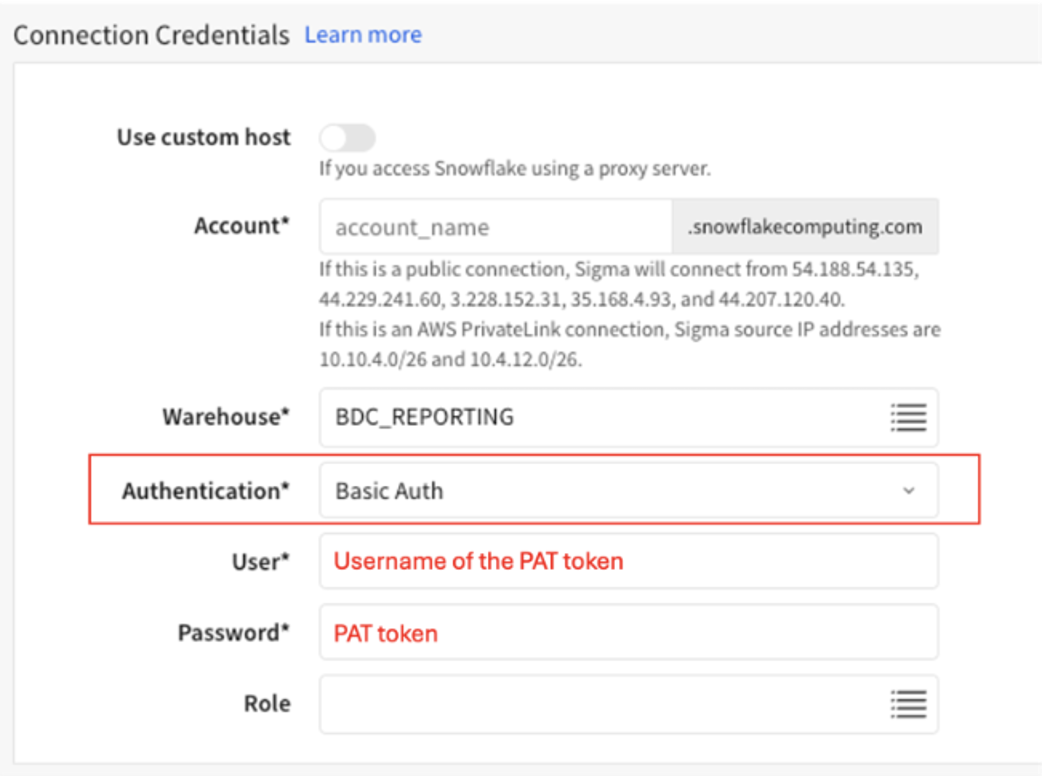
- Under Connection Credentials enter the snowflake account and warehouse.
- In the Authentication dropdown select Basic Auth.
- In the user field, enter the username associated with the token.
- In the password field enter the PAT token.
How to use a PAT in Omni
PATs cannot be used in Omni to connect to Snowflake. Only RSAs (and soon OAuth) are supported. Please check out our article on RSA Key Pairs.
Note that Omni supports PATs for Databricks.
How to use a PAT in Domo
PATs are currently usable in Domo in their standard Snowflake connector, however Domo announced that they will retire this connector in November 2025. Only RSAs and OAuth will be supported. Please check out our articles on RSA and OAuth.
How to use a PAT in Looker
In their Snowflake config guide, Looker recommends using RSA or OAuth to manage connections passwords or PATs should be used only by existing customers who need time to transition to a multi-factor authentication method before Snowflake's November 2025 deadline.
- In the Admin section of Looker, select Connections, and then click Add Connection.
- In Database Settings - Host: Enter the Snowflake hostname. It will have the format: <account_name>
.snowflakecomputing.com. - In Database Settings - Authentication Method: Select Database Account.
- In the user field, enter the username associated with the token.
- In the password field enter the PAT token.
PAT is just one of the options you have to authenticate your BI tool connection to Snowflake. Please check out our other blogs on OAuth and RSA Key pairs to see other secure alternatives.
Need help setting up your snowflake to BI connection fast before the deprecation deadline? Contact us, we are already helping our clients switch their connections.