

5 Git Commands to Fix Common Mistakes and Get Unstuck Fast
If you use Git long enough, you eventually hit that moment: you try to commit or push your code, only to see an error… or you suddenly realize you’re on the wrong branch. The good news is that Git almost always gives you a way to recover once you know where to look.
There are many ways to fix Git problems, but this article focuses on simple, intuitive approaches. I’ll start with a handful of commands that I reach for the most, then show how they help resolve some of the common “I messed up Git” situations.
Here are 5 commands that can help you get unstuck:
| git reset HEAD^ | Think of it as: “undo the last commit” |
| git reset | Think of it as “unstage my changes” |
| git revert | Reverts a specific commit by creating a new, opposite commit |
| git stash | Temporarily store changes you’re not ready to commit |
| git cherry-pick | Copy a commit from one branch to another |
git reset HEAD^
I like to think of this as Git’s undo button.
I even set up a git alias so I can run it as “git undo”.
This command removes the last commit but keeps all of its changes unstaged. It’s perfect when you committed too early, forgot something, or committed on the wrong branch.
git reset
This is basically the opposite of “git add .”
Running git reset will unstage all staged files, returning them to the “modified but not staged” state. This is useful when:
- You staged something by accident
- You want to keep editing your files
- Temporary or debug files were staged unintentionally
git revert <commit-hash>
git revert creates a new commit that undoes the changes introduced by the specified commit.
Example:
If commit a2c25062 added a line of code, then “git revert a2c25062” will create a new commit that removes that line of code.
This is safer than “git reset” for shared branches because it preserves history.
git stash
Stashing lets you temporarily store changes you’re not ready to commit.
Running “git stash save” moves all your uncommitted changes into a separate storage area called the stash, leaving your working directory clean. Later, when you’re ready, you can bring the changes back using “git stash pop”
This is extremely helpful when:
- You’re halfway through a feature and need to switch branches
- You started making changes and realized you’re on the wrong branch
- You want to test something on a clean workspace
Note:
The stash is not tied to any branch, so you can stash changes on one branch and apply them on another, which makes it great for moving uncommitted work around.
git cherry-pick <commit hash>
You can think of cherry-pick as copying a specific commit from any branch into your current branch.
A common use case is if you made several commits on the wrong branch, if the commits were hash1, hash2, and hash3, you can do:
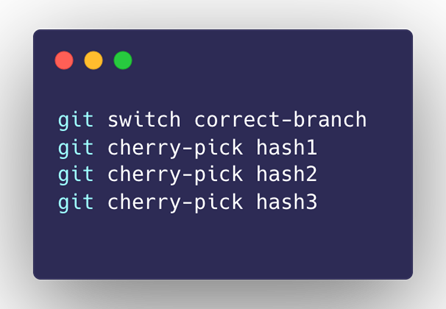
This copies the commits over in order, preserving their changes without merging the entire branch.
If you want to learn more, Atlassian has an excellent guide: https://www.atlassian.com/git/tutorials/cherry-pick
Summary
Hopefully these five commands help you feel more confident navigating Git slip-ups. Most of the time, I’ve found that mixing and matching these commands lets me get out of nearly any Git-related jam without needing to dive into the more confusing parts of Git’s internals.
Git can feel intimidating, but with the right mental models, you’ll be unstuck in no time!